
Overview
Families: Multi-Event Series & Sessions
Link events and lists into parent-child hierarchies that roll contacts up into one guest list. Track participation across quarterly dinner series and roadshows, and delegate guest curation to collaborators.
A conference has twelve sessions. How do you track who’s attending which ones without spreadsheet chaos?
Manually copying guests across related events creates version control nightmares. One person updates the wrong list. Someone gets double-invited. You lose track of who’s actually attending what.
Guests sync upward automatically
Add someone to a child event. They appear in the parent list. No manual copying. One direction only.
Build series from one canvas
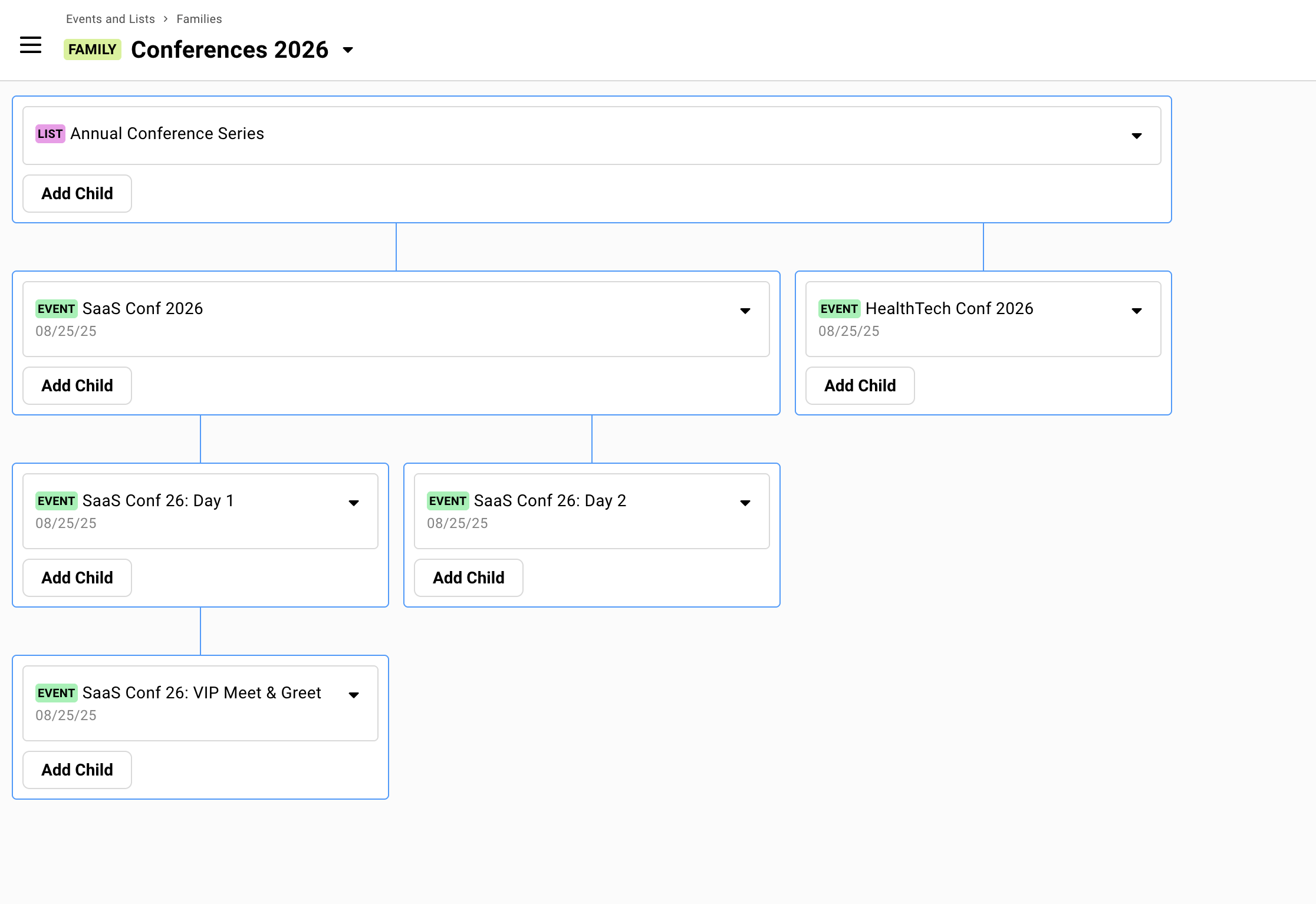
Create a parent and five children in under two minutes. Visual organization shows which events belong together.
How Families Work
Section titled “How Families Work”Families connect events and lists into parent-child hierarchies.
Most teams keep it simple with one parent and several children. Depth is there when you need it.
One rule matters: guests bubble UP, never down. Add someone to a child event, they appear in the parent automatically. Add someone to the parent? Nothing happens in children.
Think of a family as a contact roll-up. It decides which guest lists a contact appears on. It isn’t the tool for registration. If guests need to pick sessions when they register, don’t link the sessions as children. Use a registration hub and separate session events connected by an Event RSVP survey question instead. See Running Events with Multiple Sessions.
What syncs vs. what doesn't
Syncs upward:
- Guest presence on the list
Stays independent per event:
- RSVP status
- Attendance records
- Survey responses
- Seating assignments
Each event handles its own communications. Confirmation emails, campaigns, calendar invites.
The Child Guestlist column
When you create children under a parent, a Child Guestlist column appears in the parent’s guest list.
Shows which child events each guest has been added to. Click the dropdown to add or remove guests from children without leaving the parent.
Shows presence only. Not RSVP status. Add columns from “Other Events/Lists” in your Columns drawer to see actual status.
Seeing RSVPs across several events in one place
You don’t need a family to see RSVPs from several events side by side. Open the guest list you want to work from, then go to Columns » Add Fields » Other Events/Lists, find the other event under other events’ fields, and enable its RSVP column. Repeat for each event. You get one RSVP column per event.
The guests have to be on the guest list you’re working from, since the columns add information to the rows already there. If no single event has everyone, create a new event or list, add all the guests to it, and add the RSVP columns there.
Multi-level hierarchies
Families can go deeper than parent-child. Grandparent, parent, child, grandchild. Guest sync bubbles through all levels.
Multiple parents allowed. A child can have two parents. Keep it flat when possible.
Priority Families and Accessory Families
Gatsby distinguishes two kinds of Family: Priority Families and Accessory Families, and a Family can link both Events and Lists as parents or children.
Accessory families are just an organizing principle for yourself in cases where you have multiple, related families.
Labeling a hub and its sessions
Every event carries an optional label saying what it’s for — Single Event, Registration Hub, or Session — set from the What’s this event for? dropdown on the Event Details tab. In a multi-session setup, the event guests register through is the Registration Hub and each sub-event is a Session.
The label doesn’t build anything. It’s there so anyone looking at your events dashboard can tell a hub from a session at a glance, and so you can filter and sort by it. A hub and its sessions are connected by an Event RSVP survey question, not by a family link. Linking a parent to its children, if you want a contact roll-up, is still the work described on this page — the Families tab, or Advanced Settings on the event.
That means the two can disagree, and Gatsby won’t stop you. An event labeled Session with no parent behaves like any other standalone event. Label the events in a family for the benefit of your team, and build the links for the benefit of your guests.
See Guest Lists and Events for the dropdown and what each value means.
Deletion warning: Removing a guest from a PARENT removes them from ALL children. Removing from a child does NOT remove them from the parent.
Multi-Event Registration
Section titled “Multi-Event Registration”For conferences, summits, and events where guests build their own agenda, you don’t need parent-child links. Set up a registration hub event and a separate event for each session, then connect them with an Event RSVP survey question on the hub.
One registration flow. Guests select which sessions they’ll attend. Each session sends its own calendar invite. You see everyone on the hub’s guest list.
See the setup guide →Creating Families
Section titled “Creating Families”Click Create Family from the Families tab. You’ll start with a blank canvas. Add your parent first, then connect children.
Step by step
-
Click Create Family from the Families tab.
-
Click Add Parent. Choose Create New or Link Existing.
-
Click Add Child. Same options: create new or link existing.
-
Repeat for additional children. Name your family for clarity.
Linking existing events with guests
When you link an existing event as a child, its guests sync upward immediately. No notification sent. They just appear in the parent.
That changes who a campaign from the parent reaches. Say you make your Morning session the parent of two other sessions: everyone from those sessions now sits on the Morning guest list too. An email sent to the Morning guest list would go to them as well, so filter carefully before sending from a parent.
If you link by mistake, be careful how you clean up. Removing a guest from the parent also removes them from every child event. Don’t remove guests from the parent who should stay on a child. If a wrong link pulled guests onto the parent, unlink the child and then remove guests from a parent.
Alternative: Linking from Event Settings
You don’t need the Families tab to create parent-child relationships. Individual events have the option in their settings.
Open any event. Click the dropdown next to the event name. Select Edit Details. Under Advanced Settings, assign a parent or add children.
This creates or joins the same Family object as the Families tab — there’s no separate concept behind the two entry points. The Families tab gives you a visual canvas across the whole Family. Advanced Settings on an individual event is faster for a single link.
When Families Help
Section titled “When Families Help”Not every multi-event scenario needs families. The main reason to use them: you want all guests across related events visible in one parent list.
Beyond consolidated visibility, families work well for:
Delegating guest curation
Let’s say you have co-hosts or three partners who should suggest guests. But they shouldn’t see each other’s suggestions or the main event.
Give each collaborator their own child list. They add guests there. Guests bubble up to you in your event. They can’t see the parent or each other’s lists.
Clean separation. You get the full picture.
Dashboard across a series (Lists as parents)
Lists work well as parent containers for event series.
Example: “2025 Executive Dinner Series” as a list parent. Q1, Q2, Q3, Q4 dinners as event children. The parent list tracks cumulative participation. Each child handles its own logistics, calendar invites, and RSVPs.
Useful when there’s no single “main event” but you want rollup visibility.
When families are optional
Events share guests but you don’t need central visibility. If each event manages its own list independently, skip the family structure.
You’re using survey questions to add guests to other events. That works without families. Events don’t need to be connected for surveys to add guests across them.
Events are loosely related but managed separately. Not everything needs hierarchy.
Being on a guest list is invisible to guests. Families are purely organizational. Your guests don’t see or know about the structure.
Checking In Across a Series
Section titled “Checking In Across a Series”When running an event series or multi-session conference with Families, each child event has its own independent check-in. Use Gatsby’s check-in tools on the child event to mark attendance for that specific session.
This keeps attendance records scoped correctly: a guest can be “Attended” at the Tuesday dinner and “No Show” at the Thursday workshop. The parent’s guest list shows everyone across the series, but attendance belongs to each individual child event.
After the series wraps, add the Attendance column from your other events to the parent (Columns » Add Fields » Other Events/Lists) to see per-event attendance across all sessions.
Common Questions
Section titled “Common Questions” Can I convert a standalone event to a parent or child?
Yes. Use the Families tab to link existing events, or go to the event’s Advanced Settings in Edit Details.
Linking existing events pulls their guests up into the parent right away, so check first whether you need a family at all. If the goal is to see RSVPs from several events in one place, adding each event’s RSVP column (Columns » Add Fields) does that without linking anything.
What happens if I accidentally delete guests from a parent?
They’re removed from all children in the family. Use Restore Deleted Guests from the Add Guests dropdown if needed. Gatsby shows confirmation warnings before parent deletions.
Do child events need their own landing pages?
Only if guests will register directly for them, which means building a separate registration experience on that event. Usually there’s no need. If a guest wants to add a session they skipped, send them back to the main registration link and have them update their registration, as long as the main form includes the question for that session.
How do parent-child relationships (Event Families) work?
Parent-child relationships sync contacts upward from any child up to all connected parents. They’re a contact roll-up, not a registration tool.
Perfect for:
- Event series (create a Parent List with multiple Event children)
- Dashboard/Overview contact tracking (one List collecting from multiple other Events/Lists)
- Delegated guest curation (one child list per collaborator)
For multi-day conferences where guests pick sessions, use a registration hub with session events instead. See Running Events with Multiple Sessions.
The parent’s guest list shows everyone from all children with a Child Guestlist column tracking which event/list each guest has been added to.
Can't see which child events guests belong to
Add Child Guestlist column to parent event. Shows which child events each guest is present on.